Skip to content
Video production features

Prepare, render, assemble, and publish.

Pass media and text between AI preparation, template rendering, FFmpeg assembly, and YouTube publishing. Reuse the same sequence for each new video.

Connect the output of one step to the next.

Define a code-driven pipeline with media inputs, AI processing, render jobs, and an upload destination. Each step passes its files or structured data to the next.

  • Use extracted text as template layer content
  • Pass a rendered clip into the assembly step
  • Run the sequence again with new input files
Track → lyric videoExample workflow
  1. Load the source filesTrack, artwork & title
  2. Extract text and timingLyrics, timestamps & metadata
  3. Fill and render the templateNexrender + FFmpeg assembly
    .aep
  4. Publish to YouTubeVideo, title, tags & description
Reuse these steps with the next track and cover image.

Turn audio into captions and template data.

Transcribe speech or extract lyrics with timing cues. Use the text in your video and as input for titles, tags, and descriptions.

  • Pass text and timestamps to caption layers
  • Structure extracted content for the next step
  • Count LLM input and output against your token allowance

Example: a track becomes render data

Audio input
Original song track
AI extraction
Lyrics + timestamps
Template data
Text layers + timing cues

Fill named layers in your After Effects template.

ONYX uses Nexrender and JSON data to replace text, images, audio, and video in an .aep composition. Your template controls the layout and animation.

  • Match each input to a named layer
  • Keep the same fonts, effects, and timing rules
  • Render a new version for each set of input data
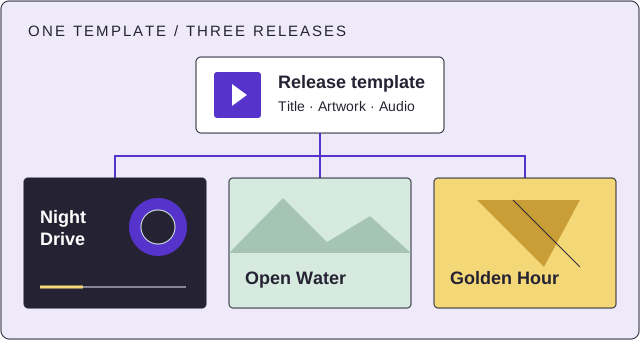
One template produces three release videos with different artwork and titles.

Example layer mapping

Title layer
Track name
Image layer
Release artwork
Audio layer
Master audio file

Join clips and export the finished sequence.

Use FFmpeg to combine your intro, selected clips, and outro. Apply fades, combine the audio, and convert the result to an upload-ready video file.

  • Set the clip order for your recurring format
  • Include captions or lyrics from the rendering step
  • Reuse the assembly settings for the next batch

Example: a highlight compilation

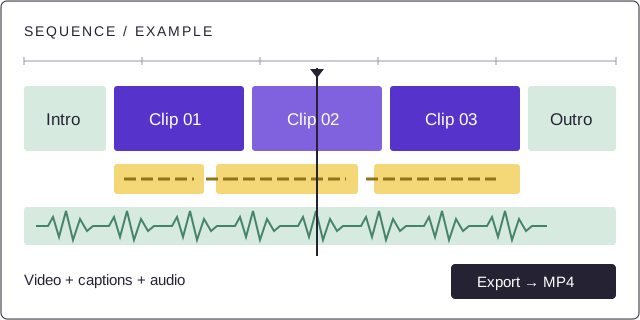
An editing timeline combines an intro, three clips, and an outro above caption and audio tracks, then exports an MP4.

Example layout: video, captions, and audio share one timeline.

Upload the video with its title, description, and tags.

The publishing step sends your exported file and metadata to a connected YouTube channel. Generate the upload text from the content in that run.

  • Choose the channel during workflow setup
  • Pass generated metadata to the upload step
  • Reuse the channel connection for subsequent videos

Example upload package

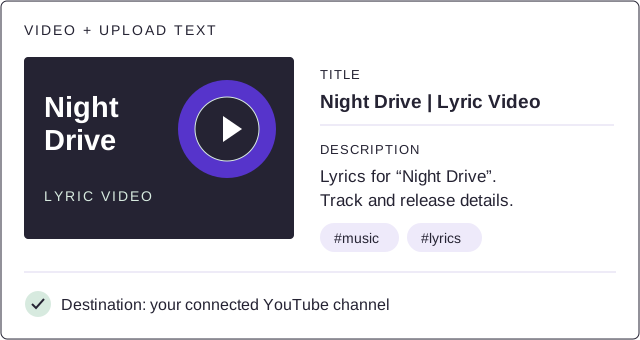
An example upload pairs a Night Drive lyric video with a title, description, and music and lyrics tags.

The video file and upload text travel to the same channel.

Run the same workflow
across a batch.

Each set of media follows the same preparation, rendering, and publishing steps. All jobs use your team’s shared weekly allowances.

Input sets Tracks + artwork + text
One ONYX workflow Prepare · Render · Assemble
Video outputs Video + upload metadata
Example batch: three input sets run through the same production steps.

Managed execution and rendering

ONYX runs the production steps and render servers. Supply the media, templates, and workflow settings.

Shared weekly allowances

Choose the publishing, token, and render-hour limits your team needs. Enterprise offers custom hosted capacity.

ONYX is available exclusively as a hosted service. Self-hosted and on-premises deployments are not offered, including on Enterprise. Compare weekly allowances.

Example video workflows.

Choose a format, prepare a sample, and reuse its template and production steps with new media.

Lyric videos & visualizers

Extract lyrics and timing from a track. Fill your template with the lyrics, release artwork, and audio.

Track + cover image → music video

Gaming compilations

Join your selected clips with an intro and outro. Add captions, fades, and a backing track to the sequence.

Selected clips → highlight reel

Recurring video series

Replace narration, text, and images for each episode. Reuse the title sequence, layout, and outro.

Script + visuals → next episode

Choose capacity for your workflow.

Compare weekly publishing, token, and rendering allowances.

Explore plans