Your creative assets
- Audio, video, images, and text you can use
- An After Effects .aep template with replaceable layers
- The required fonts, linked assets, and plugins
Gather a sample video’s media and template, connect the production steps, and check one render before running a batch.
For a lyric video, prepare a track, cover image, title, and .aep template.
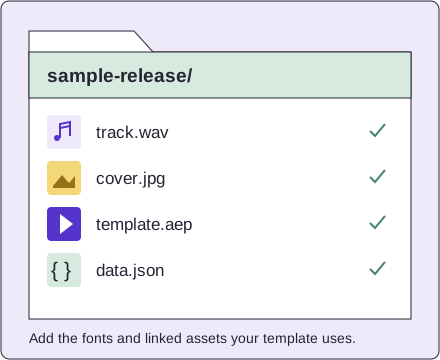
Choose a lyric video, compilation, or episode. Collect the audio, images, clips, and text needed to produce it.
In After Effects, name replaceable layers clearly, such as Title, Artwork, and Audio. Include the linked assets and required fonts and plugins.
Match your JSON fields to the template’s layer names. Set the AI preparation, assembly settings, and destination channel.
Check text, timing, audio levels, and upload metadata. Fix the sample before reusing the workflow with more media.
Use this checklist before your first render. Check template, font, and plugin compatibility with ONYX before preparing a batch.
ONYX runs the pipeline and render servers. All plans, including Enterprise, are hosted-only.
ONYX connects media inputs, AI content extraction, After Effects template rendering, clip assembly, and YouTube publishing. You define the format and production rules; the pipeline repeats those steps with new content.
Setup uses code-driven workflows and JSON data. You or the person setting up your pipeline should be able to map data fields to template layers and configure the production steps.
You or your designer need After Effects and the appropriate license to create or edit .aep templates. ONYX handles automated rendering on its hosted service. Confirm that your template’s fonts and plugins are supported before using it in a pipeline.
Yes. Prepare your .aep project so that changing text, images, audio, and video can be mapped to named layers. Include the linked assets and confirm font and plugin compatibility with ONYX, then validate the template with a representative sample.
On the ONYX hosted service. The jobs use the weekly token and render-hour allowances shared by your team.
The template keeps its layout and animation. Each run can replace the track, clips, artwork, and text. To change the layout or motion, edit the template.
A publishing step sends your exported video and its title, tags, and description to your connected YouTube channel. Validate your destination and metadata as part of your initial workflow setup.
No. ONYX is a hosted-only service. Self-hosted and on-premises deployments are not available on Creator, Studio, Scale, or Enterprise.
Creator allows one user account per team. Studio allows up to 5, and Scale allows up to 20. These are teammate logins; weekly publishing, token, and render allowances are shared by the whole team. Enterprise account limits are agreed with sales.
Check that step’s input and error message. Correct the problem, then test one sample again.
Check that the layer names in your data match the After Effects project exactly. Confirm that all linked media is included, the expected composition is selected, and the fonts and plugins are supported by ONYX.
Check the transcription timestamps against the actual audio used in the render. Look for trimmed audio, a changed start offset, or a mismatch between the timing units expected by your template and the extracted data.
Check the job’s error message and any missing assets, then try one representative sample. Complex effects and higher resolutions can take longer to render. If the issue persists, send support the job reference and error message so we can investigate the hosted render.
Check the connected channel, authorization, the final export file, and the publishing step’s error output. If you contact support, include the error message and the step that failed, with credentials removed.
Include the job reference, failed step, error message, and expected result. Remove passwords and API keys from anything you send.
Email supportSend your content format, videos per week, and number of teammates. Sales can help match the workload to a hosted plan.
Contact salesYou can reach us at onyx-sales@noni.io.